%20(1).svg)
If your company has rebranded and you need to update your logo, company name, and/or the mix descriptions on existing EPDs and in your default menu, our support team can make these updates for you.
Before you begin- If updating your logo and/or company name: you have the new logo file and/or updated company name ready to attach.
- If updating mix descriptions on existing EPDs: you have the previous description, new description, mix code, and plant name for each EPD being updated.
- Updating multiple mixes across different plants? Make sure each row in your spreadsheet includes the mix code and plant name so support can match them correctly.
- Not sure of the exact previous description on file? Ask support to confirm before submitting your update.
- Steps
1. Contact Customer Support (link).
2. If updating your logo and/or company name, attach the new logo and/or company name to your request.
3. If updating mix descriptions on existing EPDs, attach an Excel spreadsheet listing the previous mix description, the new updated mix description, the mix code, and the plant name for each EPD.
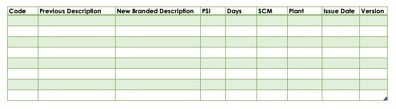
Example spreadsheet template for listing mix description updates.
Expected resultSupport will process your request and update your logo, company name, and/or mix descriptions as specified.
TroubleshootingYou can reach Customer Support directly here: Submit a Support Ticket
Related articles