%20(1).svg)
If you're entering a material quantity in the Mix design step and it's flagged as outside the allowed range (or you need the unit of measure changed), our support team can adjust these settings for you.
Before you begin- You know the material category or specific material name that needs updating (e.g., "all aggregates" or a specific material).
- You know the plant(s) associated with the material that need to be updated.
- Seeing an invalid range or unit error on a material field? Note what's currently shown when you contact support — it helps them confirm the update you need. You can also include a screenshot.
- Updating multiple materials or plants at once? List each one so support can apply the changes together.
- [Link: How do I clarify or change the name/code of an existing material?]
- [Link: How do I add new materials to the EPD Generator, and what does it cost?]
1. Contact our Help Center (link below).
2. Include the material category type or specific material name.
3. Include the names of the plants to be updated.
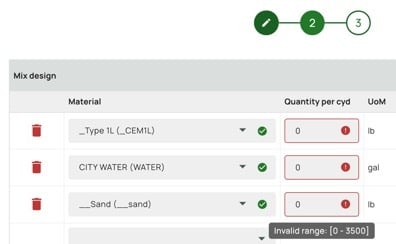
In step 2 when creating an EPD in the EPD Generator, the Mix design step, a red "!" icon and "Invalid range" tooltip appear when a quantity falls outside the allowed range.
Expected resultSupport will update the allowed range or unit for the specified material(s), and you'll be able to enter your quantity without triggering the invalid range error.
TroubleshootingYou can reach our Help Center directly here: Submit a Support Ticket
Related articles