%20(1).svg)
The Bid Report Builder lets you compare a project's concrete mixes against a carbon budget or an industry benchmark, so you can show how a bid's embodied carbon stacks up before you submit it.
Before you begin- You're logged into the Climate Earth EPD Calculator and have access to Bid Reports.
- You know whether your project has a defined carbon budget, or whether you want to compare against a benchmark instead.
- If comparing against a benchmark, you'll select the regional baseline option that matches your construction site's location (for example, "NRMCA V3.2 Eastern" for a site on the East coast).
- You know the mix codes you want to include, or can look them up by plant, strength, or GWP.
1. Log into the EPD Calculator and click Bid Reports in the left-hand menu.
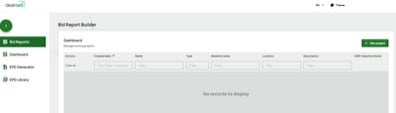
Bid Reports dashboard — click "+ New project" to start.
2. Click + New project (top right of the Dashboard).
3. Fill in the Project Basic Information — Name, Description, and Type. If your project has a defined carbon budget, select "Budget" under Type. Otherwise, select "Benchmark," then choose the baseline option that matches your construction site's location (for example, "NRMCA V3.2 Eastern" for an East coast site). You can leave "GWP reduction factor (a)" blank — it's optional.
4. Fill in the Project Address (Street, City, State, Zip code), then click Next.
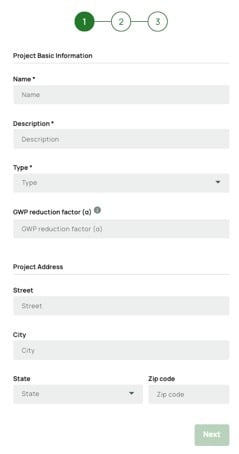
Step 1 of the project wizard — Project Basic Information and Project Address.
5. Click + Add applications.
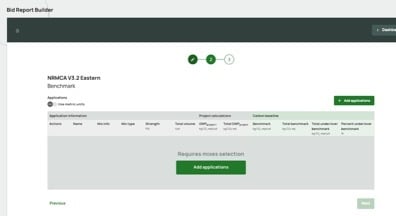
Step 2 of the wizard — click "Add applications" to start selecting mixes.
6. In the Select Mixes window, look up the mix codes you want — filter by plant, code, strength, or GWP range — check the ones you want, then click Add selected Mixes.
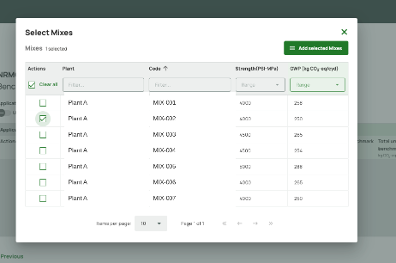
Select Mixes — filter and check the mixes to add to your bid report.
7. For each application added, enter a Name and the Total volume (cyd). Mix type and strength are filled in automatically from the mix code you selected.
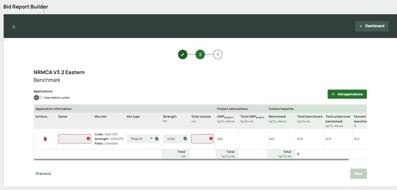
Required fields per application: Name and Total volume. Mix type and strength auto-fill from the selected mix.
8. Once you've added all your applications, click Next.
Expected resultYou'll see your results: GWP benchmark and project averages, the GWP reduction factor, and a chart comparing embodied carbon by application against your benchmark or budget. From there, you can Save your progress, or click Save and download report to produce the finished bid report.
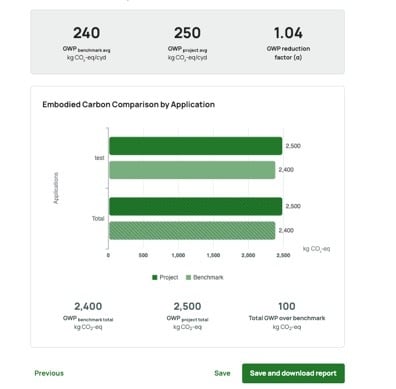
Results view — embodied carbon comparison by application, with options to save or download the report.
Troubleshooting
- Mix code not showing up in Select Mixes? Double-check the plant and filters — a mix only appears if it's associated with the plant and matches your filter criteria.
- Need results in metric units? Use the "Use metric units" toggle on the Applications step.